
Enter Horse Notes
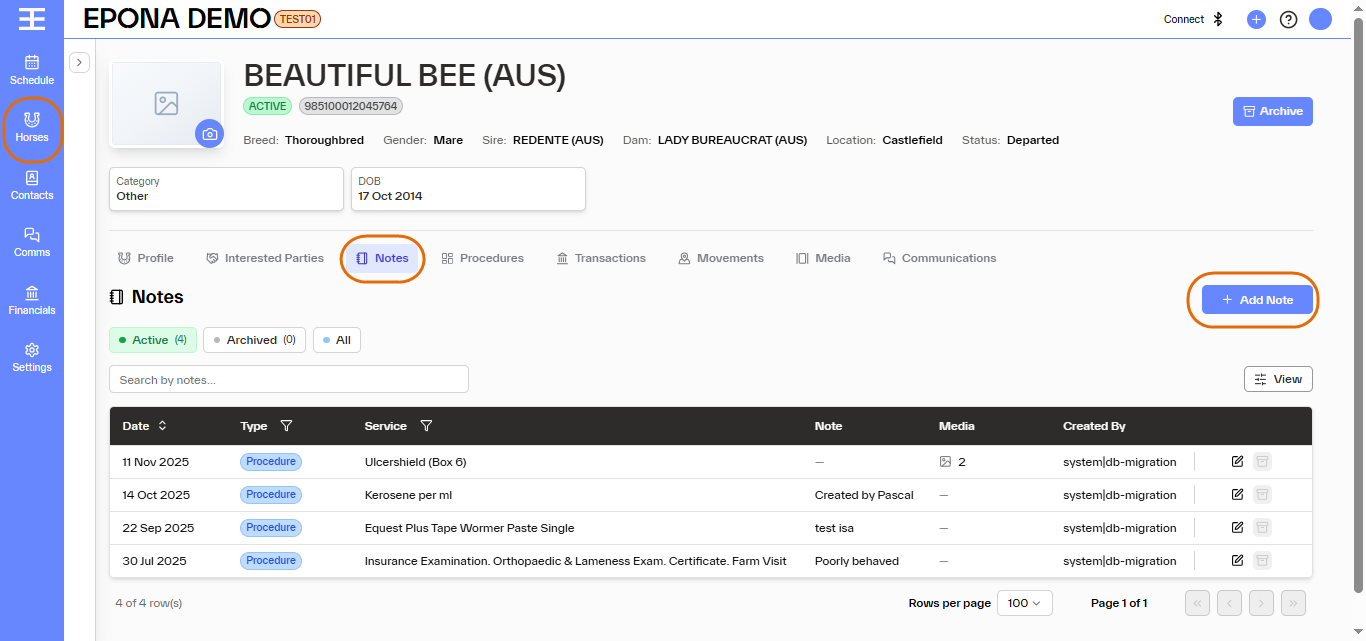
It's normal and expected to keep notes and records against horses in your care. In Epona the best way to do this is via the Notes Tab in the Horse Info screen. Click the Add Note button at right of screen to add a new note.
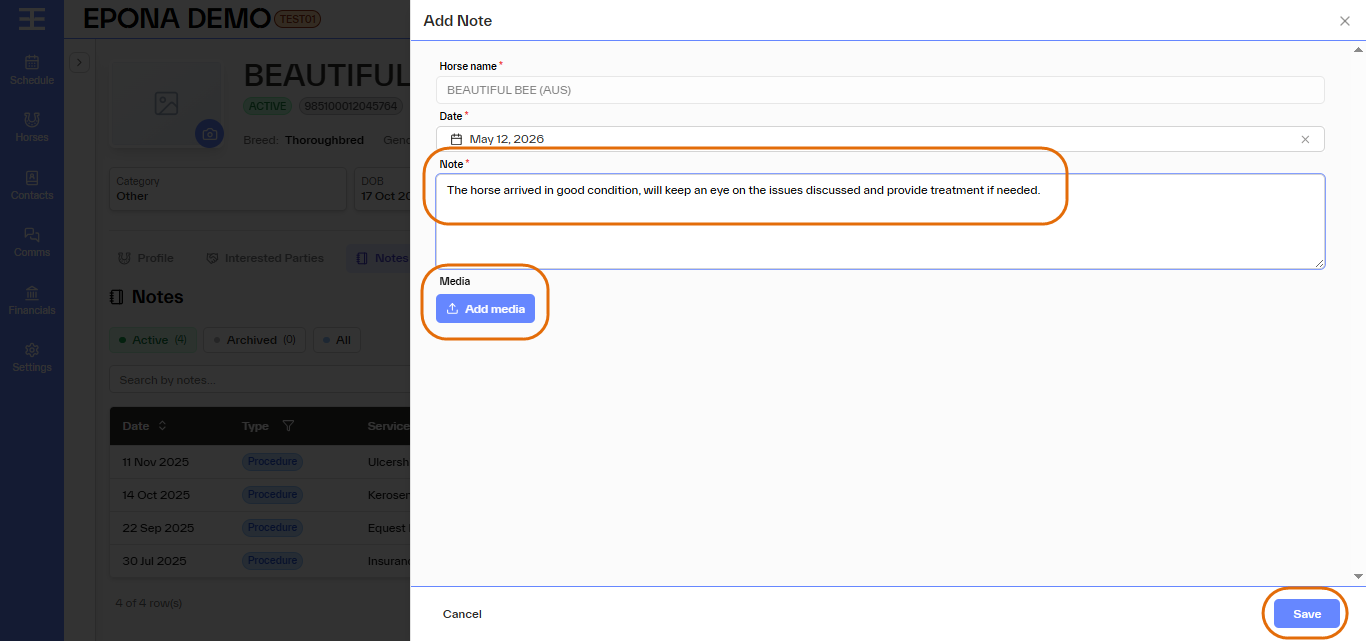
Add text to the 'Note' box in the middle of screen, and click the 'Add Media' button if you would like to attach files to the note, for example image, audio, video, PDF or other digital files.
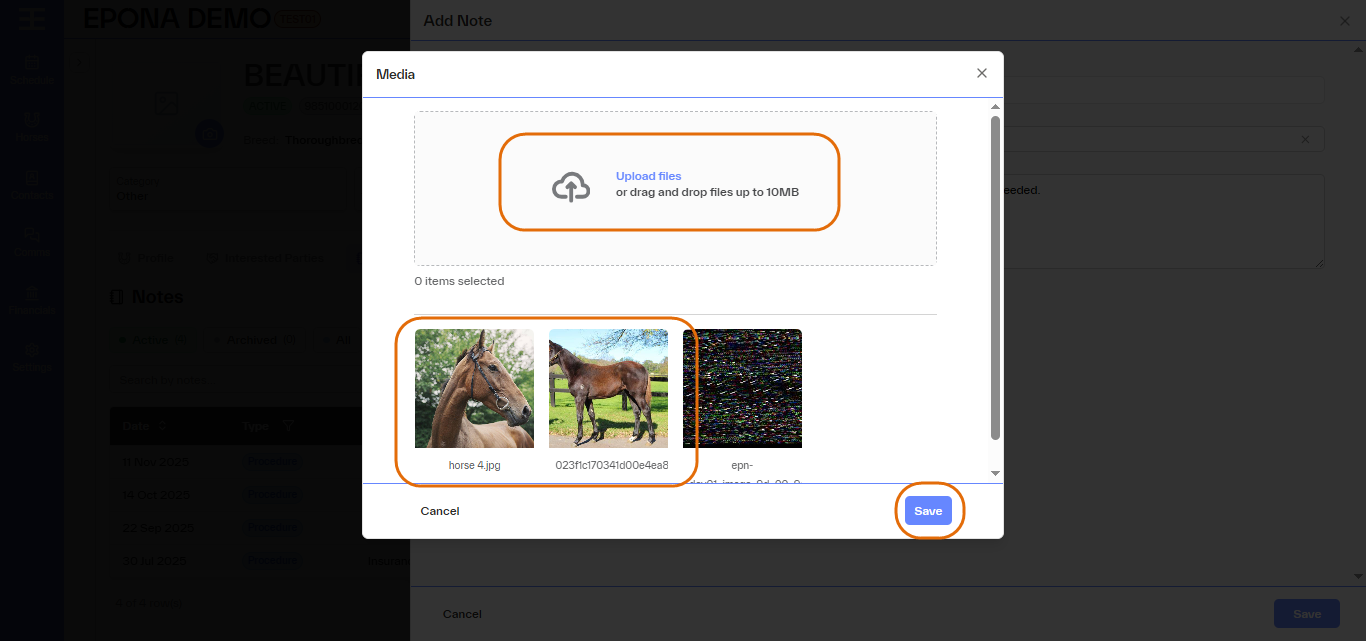
When adding media files to a note you can select an existing file already saved to the horse record, or click 'Upload Files' to add a file stored on your local computer. The file could be any type of document or image, movie or audio recording. Multiple files may be uploaded and linked to the note.
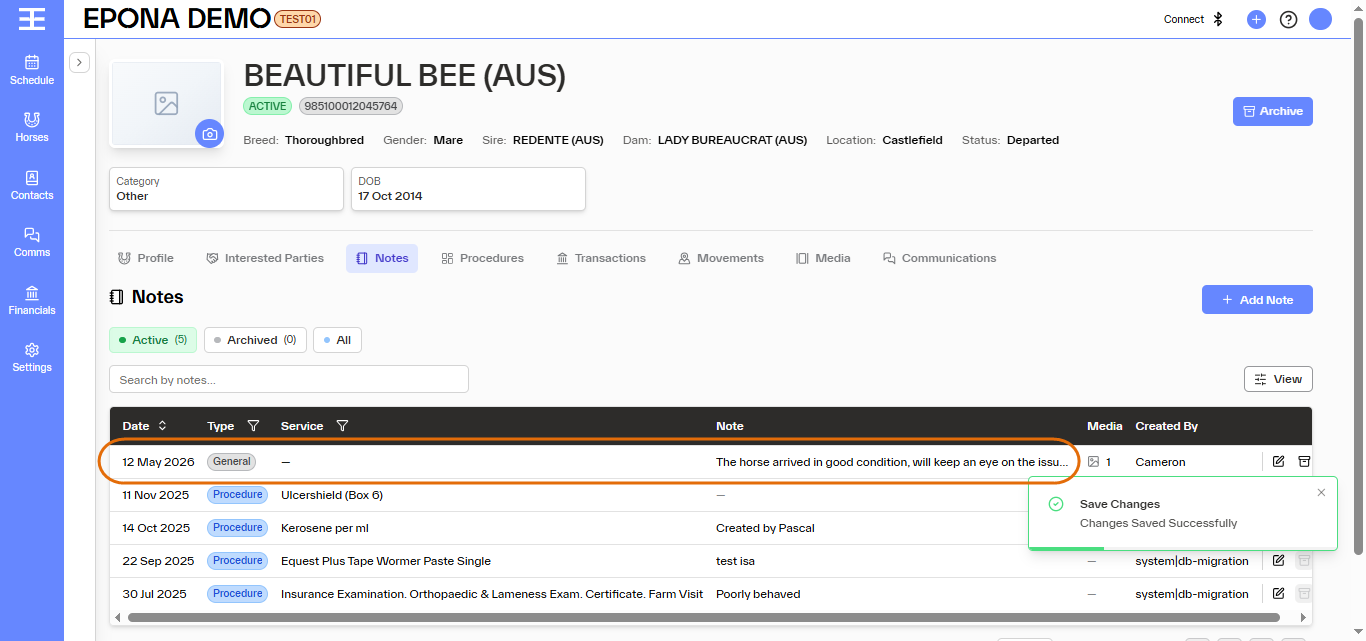
When you click 'Save' you should get confirmation on screen 'Changes Saved Successfully' and you should see the note on the list of notes for the horse. Note type will be 'General' and there will be no service code linked to the note, as it's not a procedure with a charge.
You can see that procedures and movements recorded to the horse can also generate a 'Note' so long as text was input to the 'Notes' box at the time the procedure (or movement) was recorded (or a media file was attached). To view only 'General' type notes (text notes entered by your staff) you can filter by 'Note Type'.
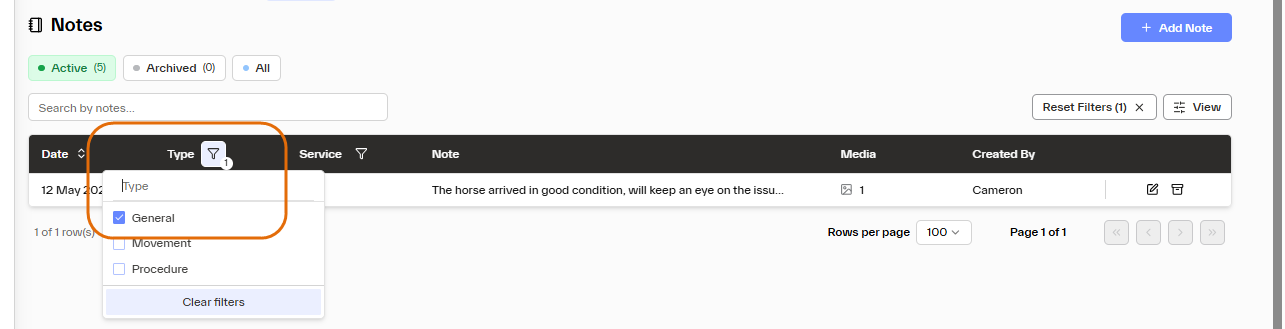
Notes made can be modified or archived via the Edit and Archive icons at right of screen. Procedures and movements recorded to the horse without any 'Notes' text entered on screen at time of recording, will not create 'Notes' against the horse (but will still be visible in the procedures and movements tabs in the horse info screen).