
Movements
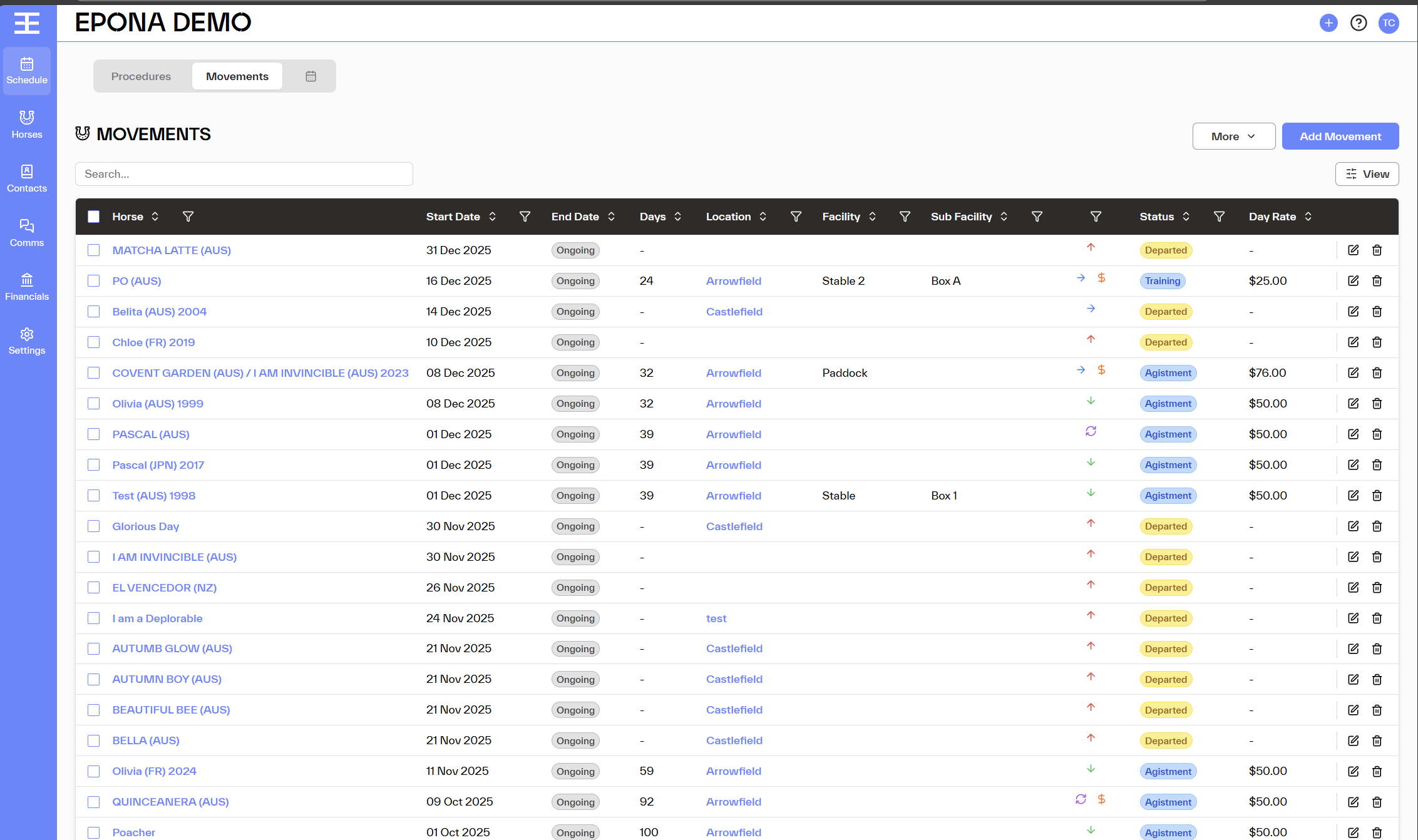
The Movements page gives you a clear, central view of all horse movements in EPONA. From here, you can easily view, filter, and manage movements across your stable. You can access Movements from:
- Left navigation: Schedule > Movements
- Switching between Procedures and Movements.
Day Rate Visibility
To keep financial information secure:
- Admins and Managers can see the Day Rate column
- Users will see everything except Day Rate fil,
Using Filters
You can use filters at the top of the page to quickly find the movements you’re looking for. Filters work the same way as they do in Procedures.
Available filters include:
- Horse – Search and select one or more horses
- Start Date – Filter by a date range
- Location – Search and select one or more locations
- Facility – Filter by facility and subfacility
- Status – Filter by movement status
You can combine multiple filters to narrow results further.
Understanding the Movements Table
Each movement is displayed in a table with the following information:
- Horse
- Start Date
- End Date
- Days
- Location
- Status
- Day Rate (Admins and Managers only)
- Actions
Default Sorting
Movements are automatically sorted so the most recent ones appear first:
- End Date (most recent first)
- Start Date (if End Dates are the same)
- Horse name (A–Z, if dates are the same)
Day Rate Display
- The Day Rate shown is always the current rate saved on the movement
- If a movement was invoiced previously, the latest saved day rate is still shown
Actions You Can Take
Edit or Delete a Movement
Each movement row includes actions to:
- Edit the movement
- Delete the movement (subject to permissions and invoicing rules)
Add a New Movement
- Click + Add Movement in the top-right corner
- The existing Add Movement form will open
- If you select movements and then hit add movement, horses selected will be included
Bulk Delete
Admins and Managers can delete multiple movements at once:
- Click More > Bulk Delete
- Select the movements you want to delete
- Confirm the action
If any selected movements have already been invoiced, you’ll see a warning explaining that deleting them may impact financial reporting. You’ll need to confirm before proceeding.