
Contact Roles
Every time you enter in a contact in the system they will need to have a role.
By default we have provided you a list of roles which are most commonly used.
However you can have the freedom to change this.
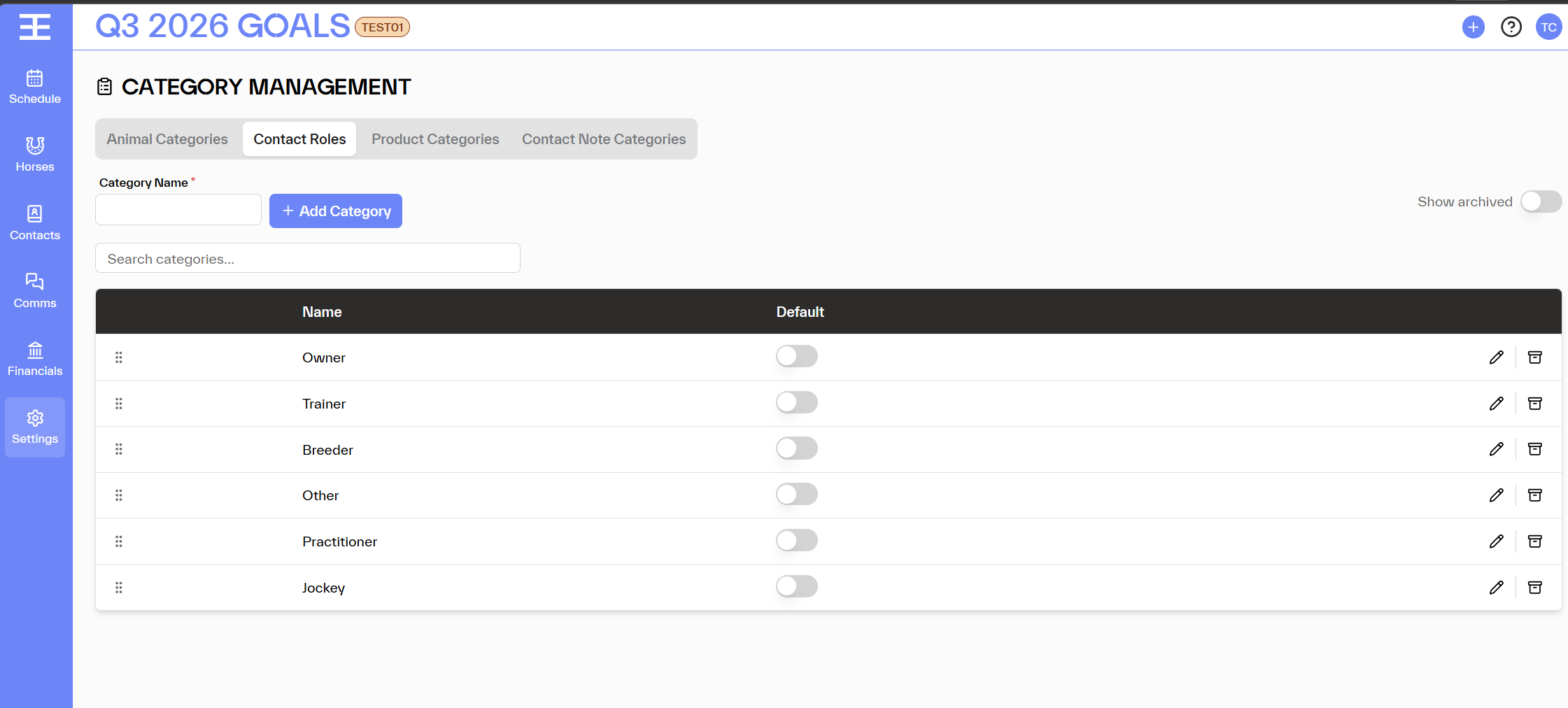
What are Contact Roles?
Contact Roles define the relationship between a contact and your workspace — for example, Owner, Trainer, Veterinarian, Farrier, or Agent. Every contact you add to EPONA can be assigned a role, making it easy to understand at a glance who that person is and how they fit into your operation.
Roles are workspace-scoped, so you create exactly the roles your team uses — no more, no less.
Where does it appear?
- Add/edit contact — the Role field on the contact form
- Contact list — filter contacts by role to quickly find all owners, all vets, etc.
- Communications — role-based filtering can help target the right contacts when sending notifications
- (Future) Reports — break down financial and operational data by contact role
How to manage Contact Roles
Add a role
- Go to Settings → Category Management → Contact Roles.
- Type the role name in the Category Name field.
- Click + Add Category.
Set a default
Toggle the Default switch on the role that should pre-fill when adding a new contact. Only one role can be the default at a time.
Reorder roles
Drag the ⠿ handle to reorder. The order here determines the order in the contact form dropdown.
Edit a role name
Click the pencil icon, update the name, and save. Existing contacts assigned that role are updated automatically.
Archive a role
Click the archive icon to retire a role. It won't appear in dropdowns for new contacts but remains on existing records. Use Show archived to restore it if needed.
Tips
💡 Think about how you'll filter, not just how you'll label. Roles you create become filter options on your Contact list. A role like "Service Provider" is less useful for filtering than "Farrier" or "Veterinarian".
💡 One contact, one primary role. EPONA assigns one role per contact. If a person wears multiple hats, choose the role that best describes their primary relationship to your workspace.