
Bill Allocation
Bill Allocation lets you break down supplier costs and assign them to the correct horses (or contacts), creating individual transactions for each or linking to existing ones
This is important for:
- Keeping accurate per-horse financial records
- Generating correct invoices to horse owners
- Ensuring your income and expense reports are meaningful
- Maintaining a clear audit trail for accounting purposes
How to Allocate a Bill
To allocate a bill, follow these steps:
Step 1:
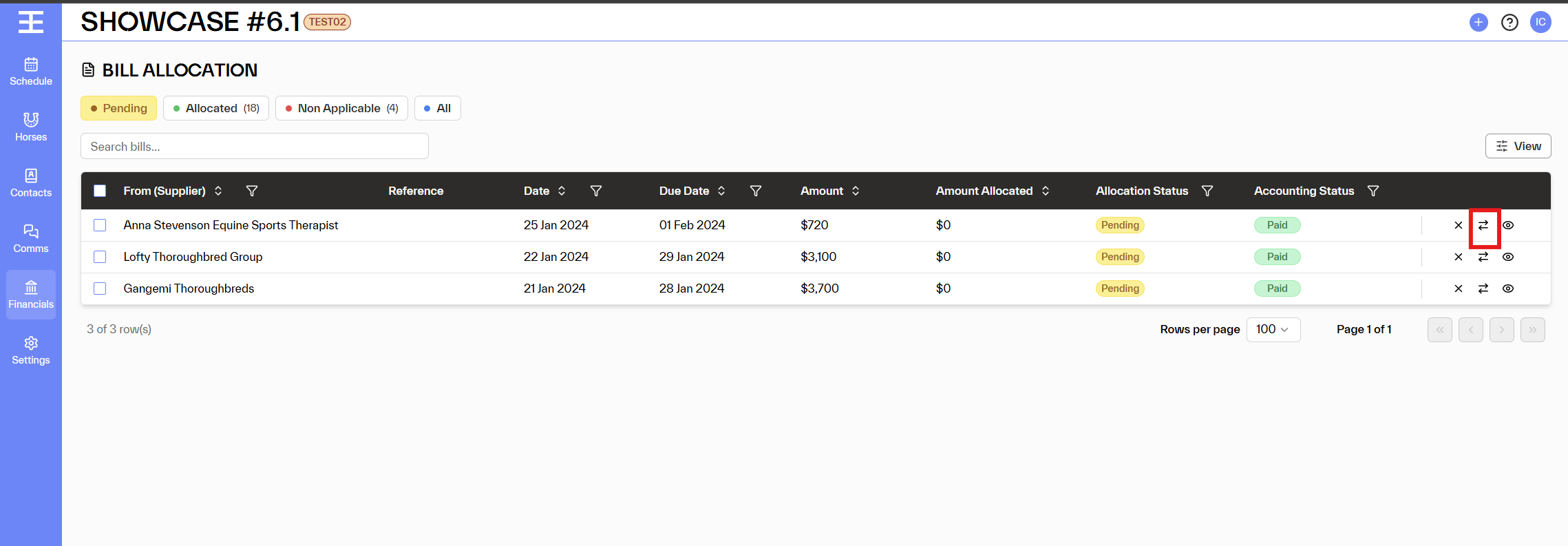
- From the Bill Allocation list, locate the bill you want to allocate.
- Click the allocate icon (the arrows icon) on the right side of the bill row
- The Bill Allocation detail view will open, showing the bill summary at the top and its Line Items below.
Step 2: Review the Line Items
The left panel shows the bill details:
- Bill Subtotal - total supplier bill value Ex GST (not including GST)
- Allocated - how much has been allocated so far (assigned to horses or contacts)
- Remaining - how much is still to be allocated (not charged to horses yet)
- Markup - overall difference between all amounts allocated (to horses) and the bill subtotal
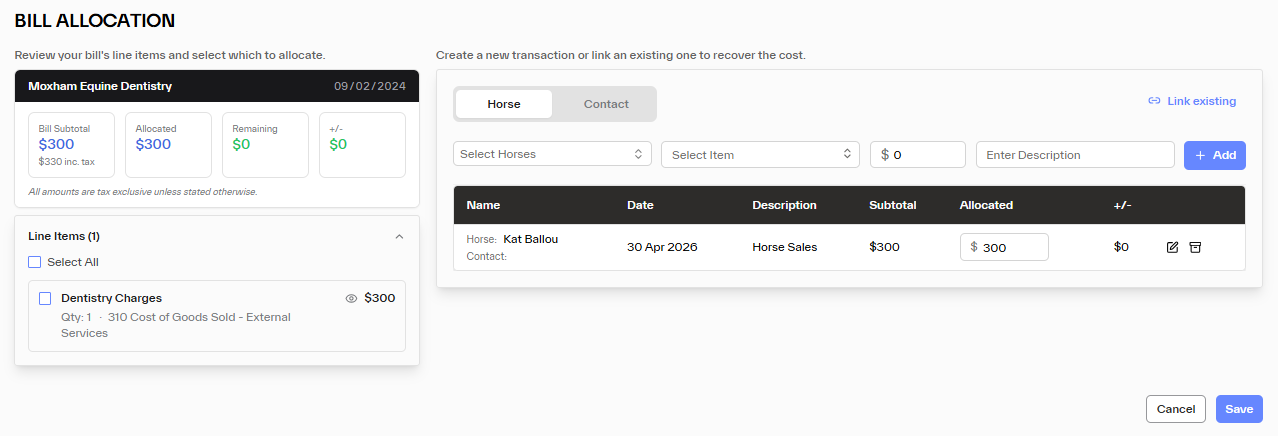
Below this, the Line Items section lists each individual service or product on the bill. For example, a bill from a Horse Therapist might show:
- Sports Massage for 6 horses — Qty: 6 | $120 each — Account: 310 Cost of Goods Sold - External Services
| 💡 Tip: Each line item shows the quantity, unit price, and the account code it has been mapped to. This helps ensure costs are categorised correctly in your chart of accounts. |
Step 3: Select the Line Items to Allocate
- Tick the checkbox next to each line item you want to allocate.
- To allocate all line items at once, tick the Select All checkbox.
- Once selected, the right panel — Create New Transaction — will become active.
Step 4: Create the Transaction
The right panel allows you to create a transaction linked to either a Horse or a Contact:
| Field | Description |
| Horse / Contact | Choose whether to allocate this cost to a Horse or a Contact using the toggle at the top of the panel (most costs will be allocated to horses) |
| Select Horses/Contacts | Use the dropdown to search for and select the horse(s) and/or contacts to link this cost to. If you select more than one, the supplier charge will be split. |
| Item | Select a service or product, or income account from your items list. This determines how the charge appears on the generated client invoice. |
| Price | Enter the price to charge for this transaction. This may include a markup over the original supplier cost, or a discount. |
| Invoice Description | Optionally add a custom description that will appear on the invoice sent to the horse owner or contact. |
- Once all fields are complete, click + Add Transaction.
- The transaction will appear in the table below (horse name, date, description, subtotal etc).
- Repeat the above for each horse or contact that the bill needs to be split across.
| 💡 Tip: Each transaction line you generate by this method will include on screen a Subtotal amount and an Allocated amount. The Subtotal amount is the actual Ex GST charge to the horse (or contact). The 'Allocated' amount is for your information only. |
Step 5: Link to an Existing Transaction (Alternative)
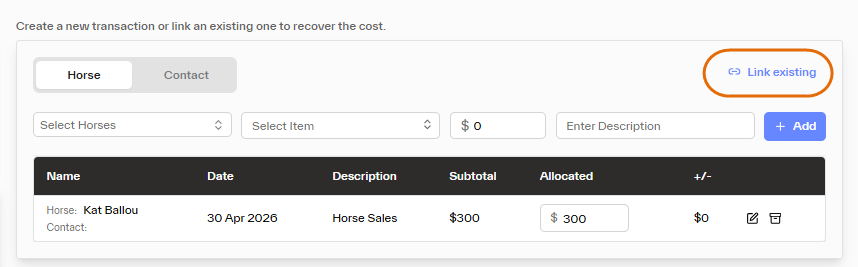
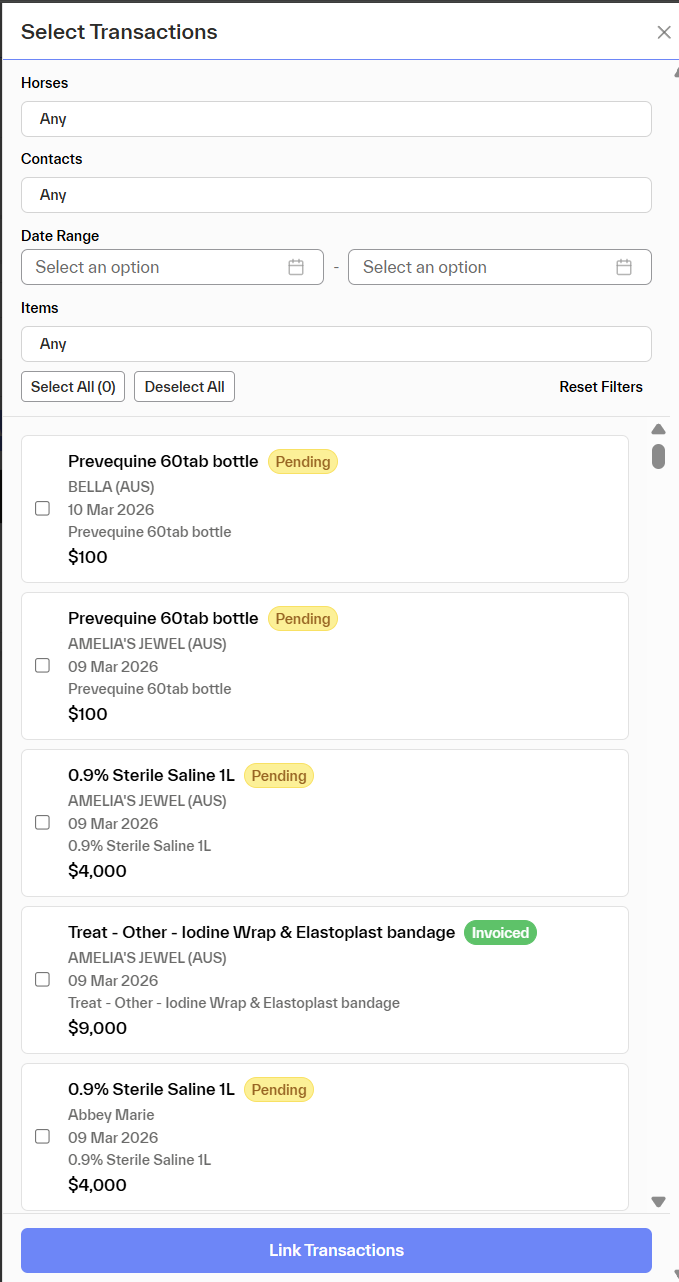
If a transaction for this bill has already been created elsewhere in the system, you can use the Link existing option in the top-right of the Create New Transaction panel. This avoids creating duplicates and keeps your records consistent. No new invoice to any person, or new charge to any horse, will generate.
Step 6: Save
- Once all transactions have been added or linked, click Save.
- The bill's Allocation Status will update from Pending to Allocated once the full amount has been allocated.
| 💡 Tip: Once the Allocated amount is equal to the Bill Subtotal amount the supplier bill will be considered as fully allocated. This is different from saying invoices generated to horse owners will fully cover the supplier cost. Where there are differences on transactions between the Subtotal and the Allocated amount, this will manifest onscreen as Markup (+/-). |
Frequently Asked Questions
Can I allocate part of a bill and come back later?
Yes. The Amount Allocated column tracks how much has been allocated so far. You can allocate some line items now and return to complete the rest later. The bill will remain in Pending status until the full amount is allocated.
What if a bill covers services I don't need to pass on to horse owners?
You can mark the bill as Non Applicable to exclude it from the allocation queue. This is useful for general overheads or internal costs that don't need to be recharged.
Can I add a markup when allocating?
Yes. When creating a transaction in the allocation panel, you can set a Price that is higher than the original supplier cost. The Markup column in the bill detail view will reflect the difference between what was billed by the supplier and what you charged.
Why does my bill show as Paid but still Pending allocation?
Accounting Status (Paid/Unpaid) and Allocation Status (Pending/Allocated) are managed independently. A bill may have been paid to the supplier before allocation has been set up. You can still allocate a paid bill at any time.
What is the difference between allocating to a Horse vs. a Contact?
Allocating to a Horse links the cost to that horse's financial record and, depending on your setup, will generate a charge on the billable owners setup under interested parties. Allocating to a Contact charges the cost directly to a specific person or organisation's account (disregarding horse interested parties) — useful for services provided directly to clients rather than their horses.
Are amounts onscreen like Bill Subtotal Inc or Ex GST
All amounts onscreen are Ex GST including the Supplier Bill Subtotal amount. That is to say, the 'subtotal' amount will be less than the full amount payable to the supplier, because it doesn't include GST. Transaction amounts against horses will have GST added outside of this screen.
If Allocated amount matches Bill Subtotal will we fully reclaim the supplier costs
Not necessarily, where on a horse transaction line the 'Subtotal' amount is less than the 'Allocated' amount it is the 'Subtotal' amount that will actually convert into a horse transaction, and then after that convert to invoices to horse owners. Be aware of amounts in the +/- markup field onscreen.