
Product Categories
What are Product & Service Categories?
Product & Service Categories let you group the products and services you bill for into logical buckets, for example, Farrier, Feed, Veterinary, Agistment, or Transport. Every product in your product library can be assigned a category, giving you control over how your services are organised, displayed, and eventually reported on.
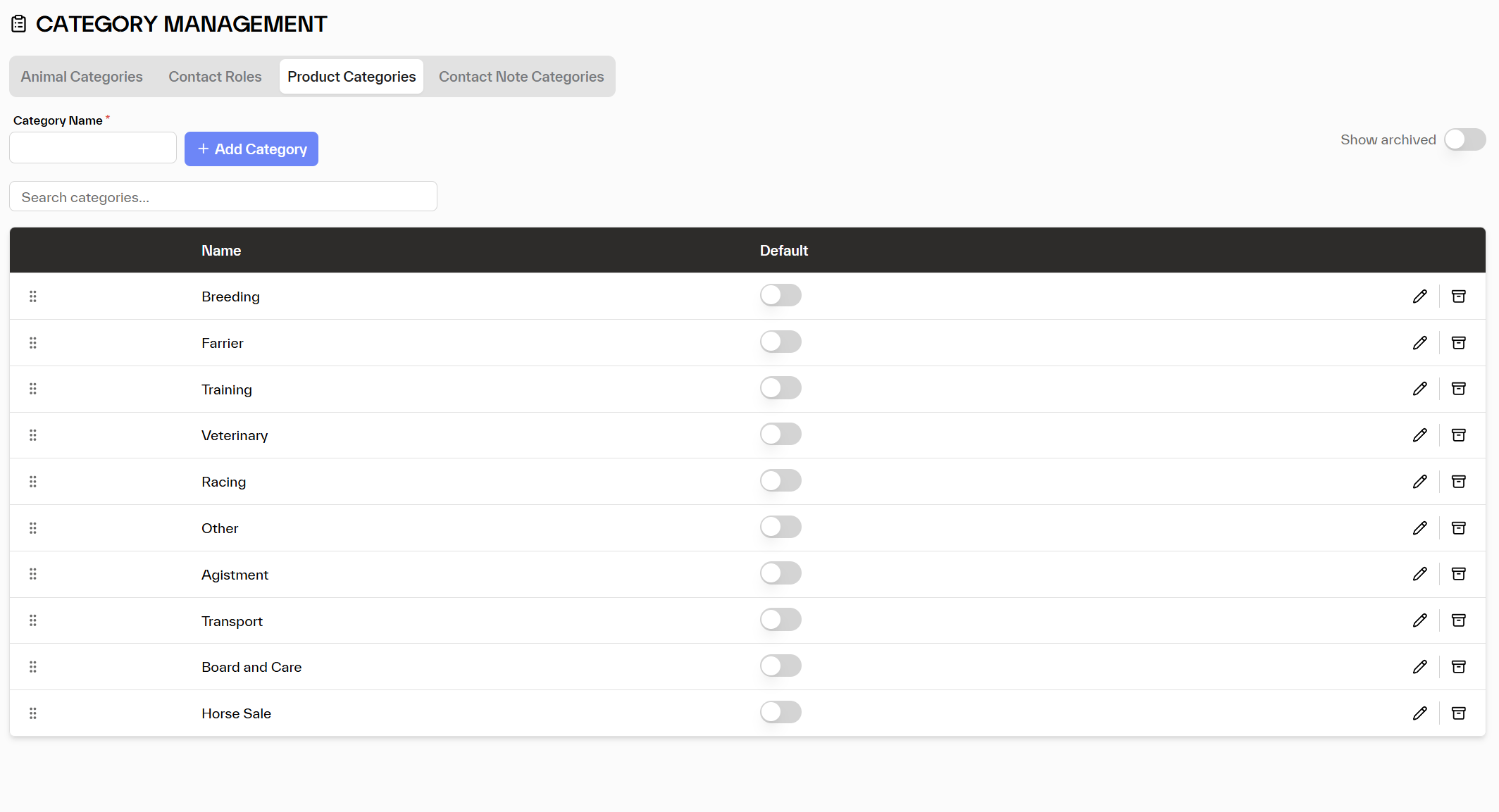
Where does it appear?
- Add/edit product/service - the Category field in your product library
- Products list - the Category column appears between SKU and Name, and can be used to filter your product library
- Invoicing - categories help organise line items when building invoices
- (Future) Reports - revenue and cost summaries broken down by category
How to manage Product Categories
Add a category
- Go to Settings → Category Management → Product Categories tab
- Type the category name in the Category Name field.
- Click + Add Category.
Set a default
Toggle the Default switch on the category that should pre-fill when adding a new product. Only one default can be active at a time.
Reorder categories
Drag the ⠿ handle to reorder. The order here determines the order in the product form dropdown.
Edit a category name
Click the pencil icon, update the name, and save. All products in that category are updated automatically.
Archive a category
Click the archive icon to retire a category. It won't appear in dropdowns for new products but remains on existing product records. Use Show archived to view or restore it.
Tips
💡 Mirror how you think about your P&L. Categories that align with how you already group revenue (e.g. Veterinary, Farriery, Agistment) will make future financial reporting more useful from day one.
💡 Don't over-categorise. If two categories would always appear together in a report, they're probably the same category. Start with 4–8 broad categories and add specificity only when you need it.