
Contact Groups
Contact Groups allow you to organise your contacts into named collections that can be used across EPONA for targeted communications, discount rules, and bulk contact management. Groups are visible directly in the Contacts list and can be created, filtered, and managed without leaving the Contacts screen from the "Groups" column.
💡 Groups are shared across the workspace. Any user can create and manage groups.
Why Use Contact Groups?
Groups make it easier to:
- Send bulk communications to a specific set of contacts (e.g. VIP owners, trainers, syndicates)
- Apply discount rules to a targeted group rather than individual contacts
- Filter your contact list quickly to view only relevant members
- Keep your contact database organised by relationship type, billing tier, or any custom category that suits your business
Groups in the Contacts List
A Groups column appears in the main Contacts table, directly to the right of the Roles column. Each group a contact belongs to is displayed as a badge (with the group name). You can remove a contact from a group directly from this view.
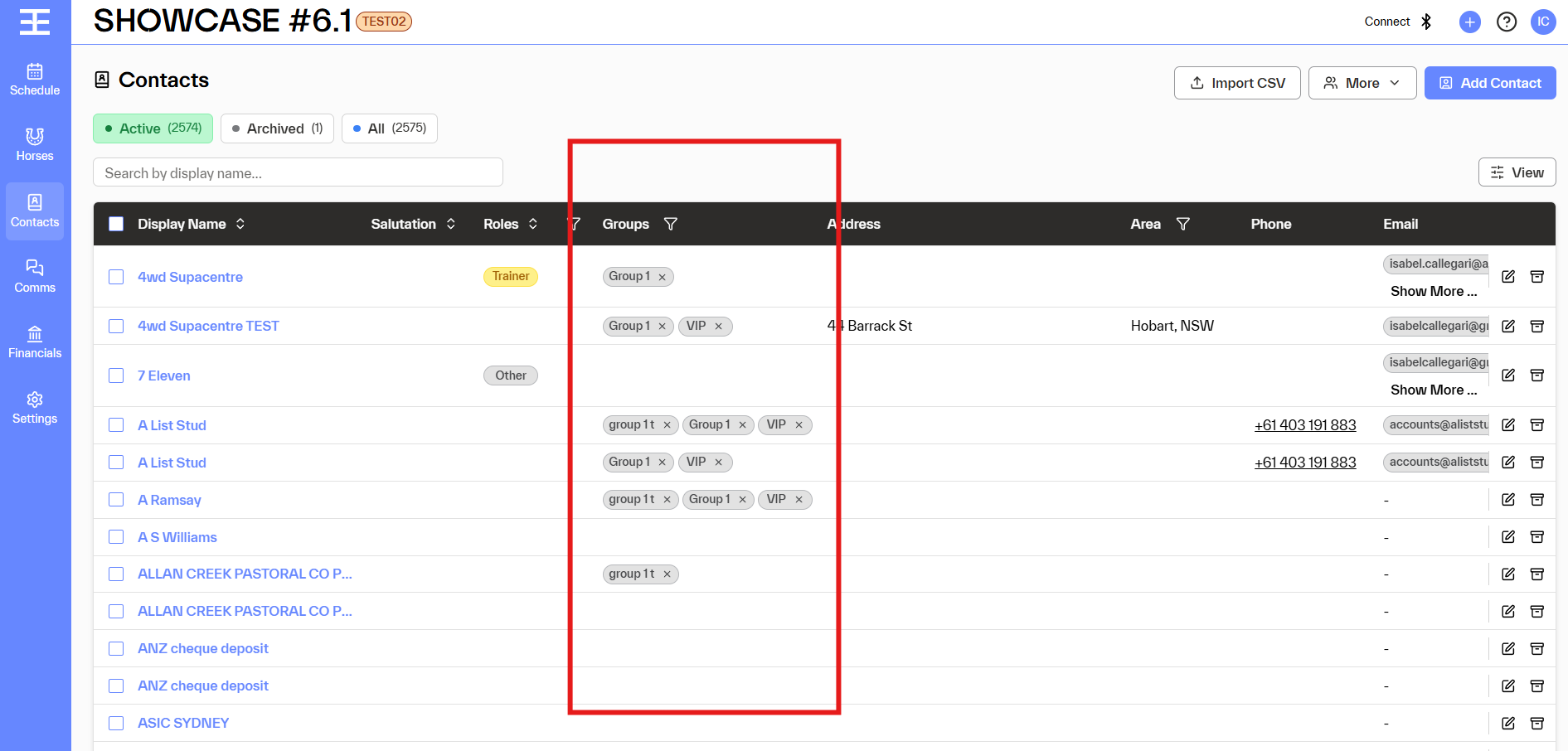
- Click the × on a group badge to delete the group link (for that selected contact)
Filtering Contacts by Group
Use the Groups Filter above the contacts table to narrow your view:
- The filter defaults to showing All Groups (all contacts are visible).
- Click the filter dropdown to see a list of all your groups.
- Select a group to display only contacts who are members of that group.
- Clear the filter to return to the full contacts list.
Validations & Rules
| Rule | Behaviour |
| Group Name required | You cannot save a group without entering a name. |
| Unique names only | If a group with the same name already exists, a warning displays: "A group with this name already exists. Please choose another name." |
| Max 100 characters | Group names are limited to 100 characters. Leading and trailing spaces are automatically trimmed. |
| No duplicate memberships | If a contact is already in a selected group, the system skips re-adding them (a contact can only be in a group once). |
| Multiple groups allowed | A single contact can belong to any number of groups simultaneously. |
Empty States
If no groups have been created yet:
- The Groups column in the contacts table will be blank.
- The Add to Group modal will show: "No groups available. Create a group first." with a link to the Create Group flow.
Quick Reference
1 | Create a new group | Contacts → More → Create Group → Enter name, select contacts → Save |
2 | Add contacts to an existing group | Contacts → Select contacts → More → Add to Group → Choose group(s) → Save |
3 | Remove a contact from a group | Contacts list → Groups column → Click × on the group badge |
4 | Filter contacts by group | Contacts → Groups filter dropdown → Tick group(s) to filter list |
Create and Manage Contact Groups