
Bills
Overview
Bills are supplier invoices that your business receives for services rendered to active horses. The Bills menu — found under Financials — gives Managers and Admin users a central place to track what you owe, manage payment status, and allocate costs back to the correct horses or contacts
Navigating to Bills
- Click Financials in the left-hand navigation bar.
- Select Bills from the submenu.
- The Bill Allocation screen will load, showing all bills associated with your operation.
| 💡 Tip: Bills specifically relates to charges you receive from suppliers into your Accounting System. |
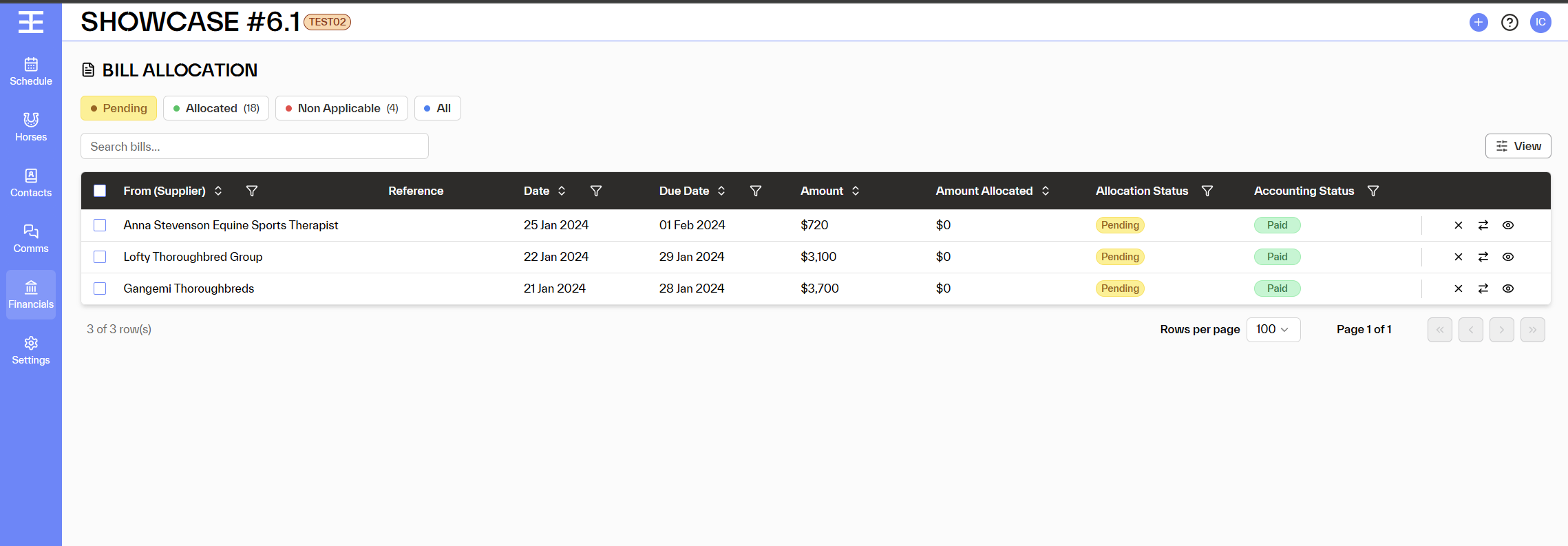
The Bill Allocation screen displays all your bills in a table format. At the top, you can filter bills by status using the following tabs:
| Status Tab | What it shows |
| Pending | Bills that have been received but not yet fully allocated to a horse or contact. |
| Allocated (18) | Bills where the full amount has been allocated. The count in brackets shows how many are in this state. |
| Non Applicable (4) | Bills that have been marked as not requiring allocation — for example, overhead expenses not tied to a specific horse. |
| All | Shows every bill regardless of status. |
Bill List Columns
| Column | Description |
| From (Supplier) | The name of the supplier or service provider who sent the bill (e.g., Anna Stevenson Equine Sports Therapist, Lofty Thoroughbred Group). |
| Reference | An optional reference number or code associated with the bill, useful for cross-referencing with supplier invoices. |
| Date | The date the bill was issued by the supplier. |
| Due Date | The date by which the bill needs to be paid. |
| Amount | The total value of the bill (ex GST) |
| Amount Allocated | How much of the bill has been allocated to horses or contacts so far. $0 means no allocation has occurred yet. |
| Allocation Status | Whether the bill has been fully allocated, is still pending, or is marked as non-applicable. |
| Accounting Status | The payment status of the bill (e.g., Paid, Unpaid). This reflects the accounting record rather than the allocation status. |
| 📝 Note: Allocation Status and Accounting Status are independent of each other. A bill can show as Paid (meaning payment has gone out) but still be Pending allocation — this means the cost hasn't yet been linked to specific horses or contacts. |
Quick Actions on the Bill List
On each row in the Bill Allocation list, there are three action icons on the right:
- ✕ (Remove) — Removes the bill from "Pending" view and marks it as "Non Applicable" as it is probably non horse related bill.
- ⇄ (Allocate) — Opens the Bill Allocation detail view for that bill so you can create or link transactions.
- 👁 (View) — Opens a read-only view of the bill details PDF
- Synch - Reloads the bill from Xero