
Contact Note Categories
What are Contact Note Categories?
Contact Note Categories let you tag notes logged against contacts, making them easier to find and filter later. When your team records an interaction, a financial conversation, a health observation, or an administrative action against a contact, the category gives that note a label so the right notes surface at the right time.
Where does it appear?
- Add Contact Note - the Category field when logging a note against a contact record
- Contact record - Notes tab — filter notes by category to view only the relevant history
- (Future) Reports - activity summaries broken down by note type
How to manage Contact Note Categories
Add a category
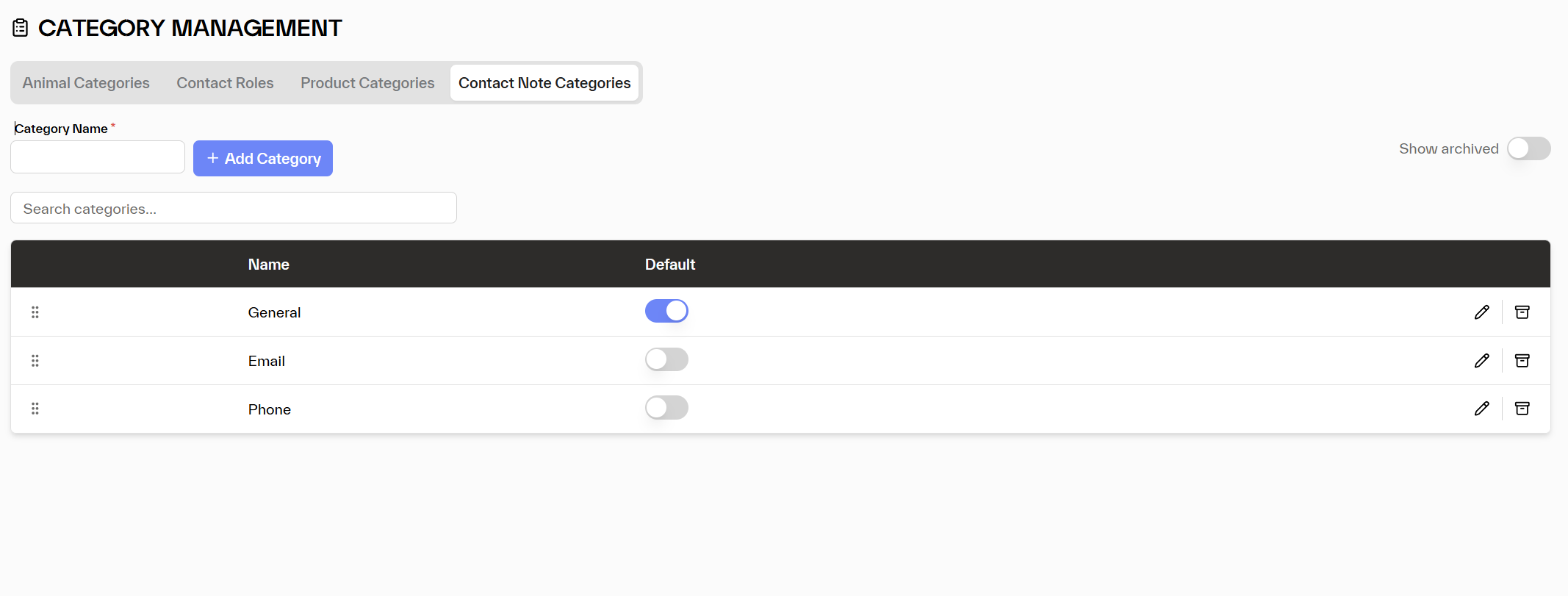
- Go to Settings → Category Management → Contact Note Categories tab
- Type the category name in the Category Name field.
- Click + Add Category.
Set a default
Toggle the Default switch on the category that should pre-fill when adding a new contact note. Only one default is allowed at a time.
Reorder categories
Drag the ⠿ handle to reorder. The order determines how categories appear in the note form dropdown.
Edit a category name
Click the pencil icon, update the name, and save.
Archive a category
Click the archive icon to retire a category. Notes already tagged with it retain the label, but the category won't appear for new notes. Use Show archived to restore it.
Tips
💡 Think about retrieval, not just recording. The best category names are ones that make it obvious which notes you'll find there — "Financial Discussion", "Health & Wellbeing", "Contract / Legal", "General" are clearer than vague labels like "Important" or "Misc".
💡 A small set works best. 4–6 well-chosen categories make notes consistently categorised across your whole team. Too many options leads to inconsistency.